
Introduction
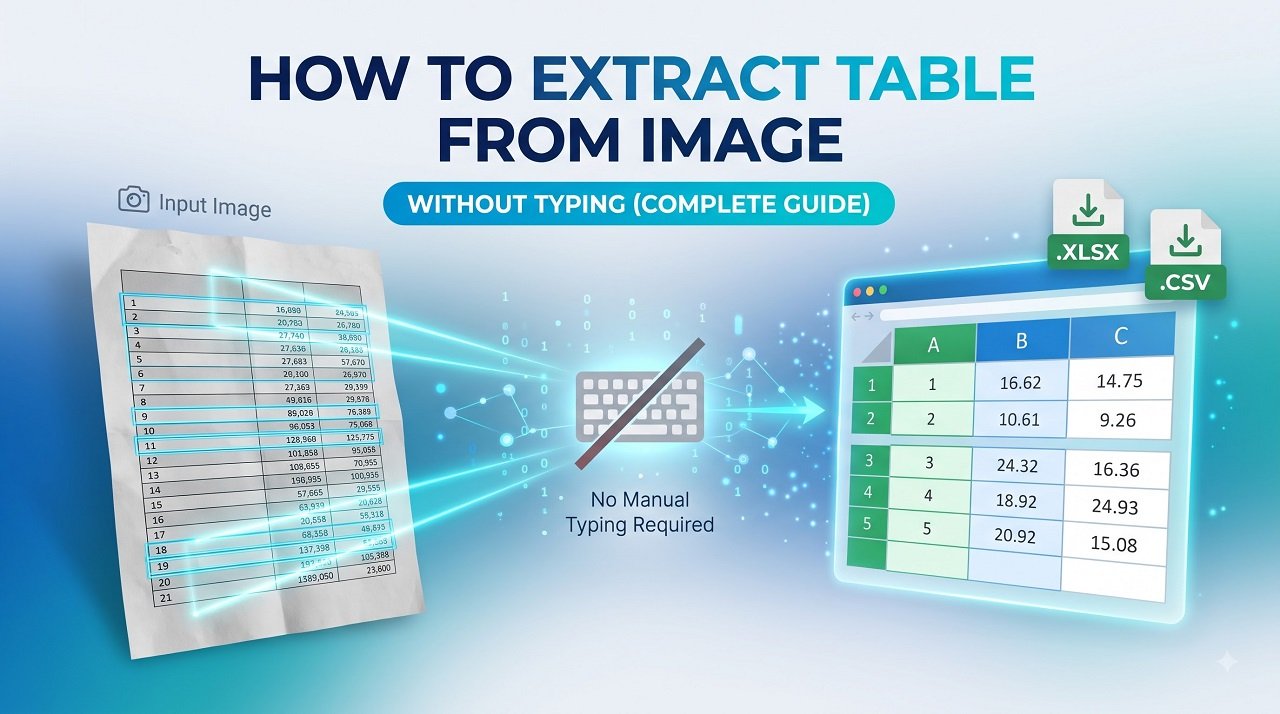
Extracting tables from images without typing manually is one of the most common challenges in today’s digital workflow. Whether it’s a screenshot of a data table, a scanned invoice, a printed report, or a photo of handwritten notes, valuable information is often locked inside images.
Manually typing this data into Excel or CSV is not only slow but also highly prone to errors. Even a small mistake in numbers or column alignment can affect calculations and decision-making.
This is where modern OCR (Optical Character Recognition) tools combined with AI-based table detection make a huge difference.
With the right tool, you can extract table from image without typing and convert it into structured data within seconds.
👉 Example:
A scanned price list with 60 rows can take over 40 minutes to type manually. Using an OCR-based tool, the same data can be extracted into Excel or CSV in under 10 seconds.
In this guide, you will learn:
- How to extract tables from images step-by-step
- How OCR and AI table detection work
- Common issues and how to fix them
- Best tools and techniques for accurate extraction
- When to use automated extraction vs manual entry
What Does “Extract Table from Image” Mean?
Extracting a table from an image means identifying structured data within the image and converting it into a usable format such as Excel or CSV.
Instead of treating the image as plain text, advanced tools detect:
- Table boundaries
- Rows
- Columns
- Cell relationships
Example:
Image Table:
| Item | Price | Qty |
| Book | 200 | 2 |
Extracted Output (CSV):
Item,Price,Qty
Book,200,2
👉 This structured output allows sorting, filtering, and calculations.
How to Extract Table from Image Without Typing (Step-by-Step)
Step 1: Upload the Image
Upload your image file. Supported formats include:
- JPG
- PNG
- BMP
- TIFF
👉 Example: Upload a scanned invoice or screenshot.
Step 2: Select Output Format
Choose your desired format:
- Excel (XLSX) → Best for analysis
- CSV → Best for data processing
Step 3: Run OCR + Table Detection
Click Convert.
Behind the scenes:
- OCR extracts text
- AI detects table structure
- Data is mapped into rows and columns
Step 4: Review Extracted Table
Check for:
- Correct column alignment
- Missing or merged cells
- Text accuracy
Step 5: Download Structured File
Download the output and open it in Excel or Google Sheets.
👉 Your table is now fully editable.
✨ Extract Tables from Images Without Typing!
Tired of manually copying table data? Upload your image and let Image to CSV/Excel Converter Advanced help you extract structured data into downloadable CSV or Excel files.
🚀 Extract Image Data Now →Convert image-based tables into spreadsheet data in just a few clicks.
How OCR + AI Table Detection Works
1. Image Preprocessing
Enhances image quality for better detection.
2. Text Recognition
Reads characters from the image.
3. Layout Analysis
Identifies table boundaries and structure.
4. Data Structuring
Maps content into rows and columns.
👉 This is what allows extraction without manual typing.
Extract Table vs Manual Typing
Manual Typing:
- ❌ Slow
- ❌ Error-prone
- ❌ Not scalable
OCR Table Extraction:
- ✅ Instant
- ✅ Accurate
- ✅ Handles bulk data
👉 Example:
Typing 80 rows manually may take 1 hour. OCR extraction takes less than 15 seconds.
Key Features to Look for in a Table Extraction Tool
1. AI Table Detection
Must detect tables automatically.
2. Accurate Row/Column Mapping
Preserves structure correctly.
3. Multi-File Processing
Supports batch uploads.
4. Clean Output Formatting
Removes noise and errors.
5. Multi-Language Support
Useful for international documents.
Benefits of Extracting Tables from Images
✅ Saves Massive Time
Reduces hours of work to seconds.
✅ Improves Accuracy
Avoids manual typing errors.
✅ Boosts Productivity
Focus on analysis instead of entry.
✅ Scalable for Bulk Data
Handles multiple files easily.
Real-World Use Cases
1. Invoice Data Extraction
Convert invoices into Excel for accounting.
2. Expense Management
Extract receipt tables quickly.
3. Academic Research
Digitize tables from books and PDFs.
4. Business Reporting
Convert printed reports into digital data.
5. Data Migration
Move legacy records into databases.
6. E-commerce Catalogs
Extract product data from images.
Common Problems & Solutions
❌ Problem: Table Not Detected
👉 Solution: Use images with clear borders
❌ Problem: Incorrect Columns
👉 Solution: Use AI-based tools
❌ Problem: Blurry Text
👉 Solution: Upload high-resolution images
❌ Problem: Mixed Data
👉 Solution: Crop unnecessary areas
Tips for Best Results
- Use high-quality images
- Avoid tilted or rotated images
- Ensure proper lighting
- Keep tables clearly visible
- Select correct language
When Should You Use Table Extraction?
Use this method if:
- You have image-based tables
- You need structured data quickly
- You handle bulk documents
- You want to avoid manual typing
Internal Resources (Learn More)
- How to Convert Image to Excel
- Convert Image to CSV Online Free
- Convert Screenshot to Excel Easily
- Top OCR Tools for Table Extraction Compared
FAQs
1. Can I extract tables from images for free?
Yes, many tools offer free extraction with basic features.
2. Is table extraction accurate?
Accuracy depends on image quality and tool used.
3. Can handwritten tables be extracted?
Some advanced tools support it.
4. What formats can I export to?
CSV and Excel are most common.
5. Do I need technical knowledge?
No, most tools are beginner-friendly.
6. Can I process multiple images?
Yes, batch processing is supported.
Conclusion
Extracting tables from images without typing is now simple and efficient thanks to OCR and AI-based tools. Instead of spending hours manually entering data, you can convert image tables into structured formats within seconds.
Whether you are working with invoices, reports, receipts, or research data, using a table extraction tool can significantly improve your workflow and accuracy.
👉 Start extracting tables from images today and eliminate manual data entry completely.
✨ Extract Tables from Images Without Typing!
Tired of manually copying table data? Upload your image and let Image to CSV/Excel Converter Advanced help you extract structured data into downloadable CSV or Excel files.
🚀 Extract Image Data Now →Convert image-based tables into spreadsheet data in just a few clicks.