
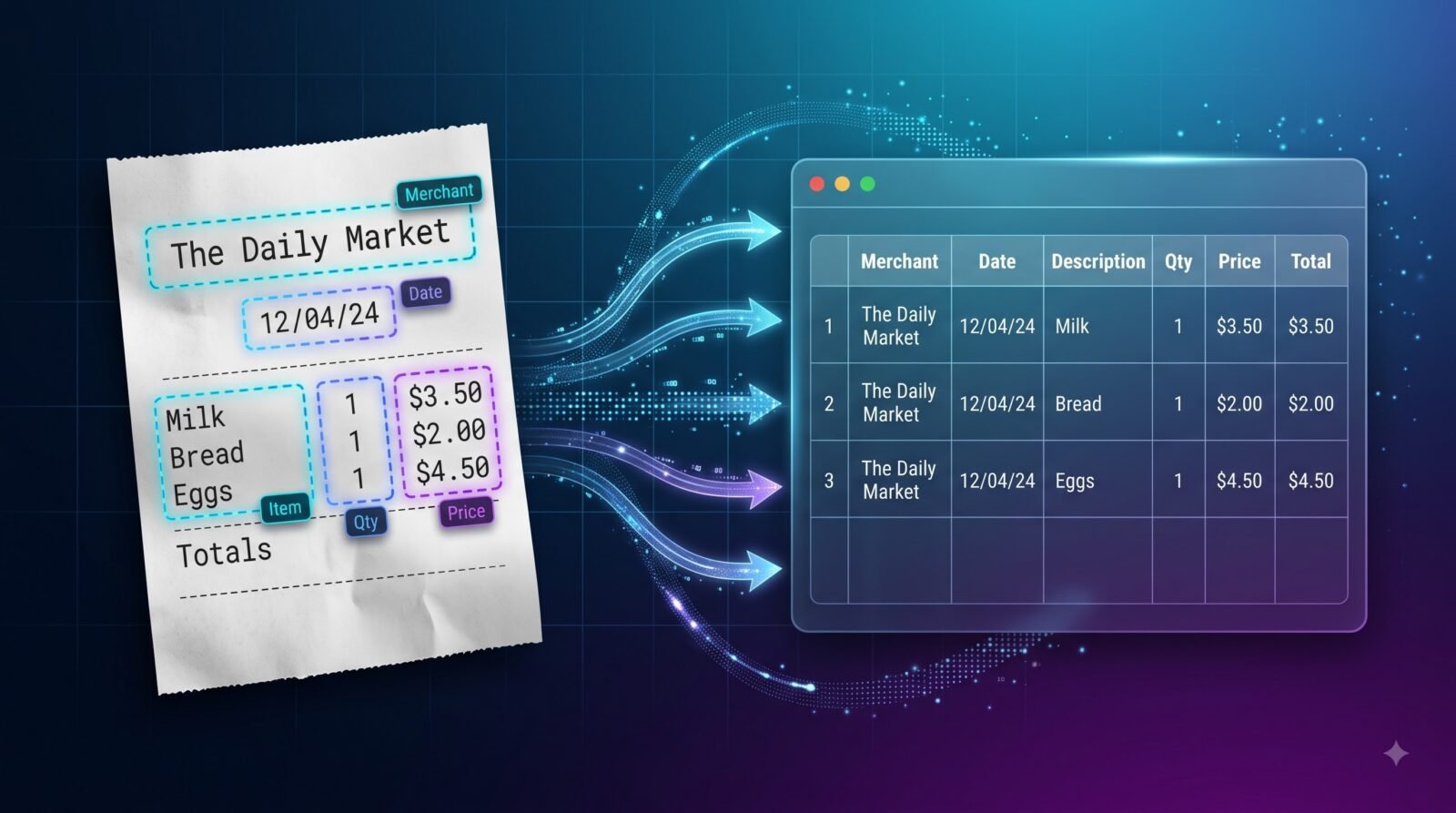
Receipts contain useful information, including purchase dates, merchant names, item descriptions, quantities, taxes, and total amounts. But when you have dozens or hundreds of receipts, entering this information into Excel manually can become a tedious task.
A faster approach is to use OCR (Optical Character Recognition) to extract text from receipt images and convert it into digital data. With a suitable workflow, you can reduce repetitive typing, organize purchase records, and prepare receipt information for expense tracking or bookkeeping.
However, there is one important distinction: extracting text from a receipt is not the same as correctly organizing every item, price, and tax into separate spreadsheet columns. This guide explains how to scan receipts to Excel, what information OCR can extract, how to improve accuracy, and when manual checking is necessary.
What Does It Mean to Scan Receipts to Excel?
Scanning receipts to Excel means converting the information printed on paper receipts into an editable spreadsheet.
Instead of manually typing every detail, you use OCR to recognize the text in a receipt photo, scan, or image. The extracted information can then be organized into rows and columns.
For example, a receipt might contain:
- Store name: Green Market
- Date: 18 October 2026
- Item: Whole wheat bread
- Quantity: 2
- Unit price: ₹45
- Total: ₹90
After extraction and verification, the information could be organized in Excel like this:
| Date | Merchant | Item | Quantity | Unit Price | Line Total |
|---|---|---|---|---|---|
| 18-Oct-2026 | Green Market | Whole wheat bread | 2 | ₹45 | ₹90 |
This structure makes the information easier to sort, filter, compare, and analyze.
Important: The example above is an illustration, not the output of an actual receipt scan. Your results will depend on the receipt layout and the extraction method.
What Information Can OCR Extract From Receipts?
The information available varies by receipt type and quality. Common fields include:
| Receipt field | Example | What to check |
|---|---|---|
| Merchant name | Green Market | Store name may appear in a logo or stylized font |
| Purchase date | 18/10/2026 | Confirm day/month order |
| Receipt number | R-10458 | Check similar-looking letters and digits |
| Item description | Whole wheat bread | Long descriptions may be split across lines |
| Quantity | 2 | Make sure it is not confused with a price |
| Unit price | 45.00 | Check decimal placement |
| Line total | 90.00 | Confirm it belongs to the correct item |
| Tax | GST ₹8.10 | Check whether tax is included or listed separately |
| Subtotal | ₹250.00 | Distinguish subtotal from final total |
| Final amount | ₹258.10 | Confirm the amount actually paid |
| Payment method | Card | Availability depends on the receipt |
Not every receipt includes all these fields. Some receipts show only a few totals, while others contain many individual line items.
OCR may also recognize information that is not useful for your spreadsheet, such as promotional messages, loyalty-program details, or store addresses. You may need to remove irrelevant content after extraction.
How to Scan Receipts to Excel Automatically
You can use the following workflow to convert receipt images into spreadsheet data.
Step 1: Collect Your Receipt Images
Start with a clear photograph or scan of each receipt.
Common image formats include JPG, JPEG, and PNG. Check that your chosen conversion tool accepts the formats you plan to upload.
If you have paper receipts, photograph them using a phone or scan them using a scanner.
For digital receipts, you can use an image or screenshot if the converter supports it.
Tip: Keep the complete receipt visible. Cutting off the bottom may remove the final amount, tax details, or payment information.
Step 2: Make the Receipt Image Easy to Read
Receipt quality can strongly affect OCR results.
Before uploading, check that:
- The text is in focus.
- The receipt is straight rather than tilted.
- Lighting is even.
- Shadows do not cover the text.
- The background does not blend into the paper.
- Small prices and decimal points are visible.
- The receipt edges and final lines are included.
Thermal-paper receipts deserve special attention because their printed text can fade over time.
If a receipt is difficult to read on your screen, OCR may also struggle to recognize it. Tesseract’s official documentation discusses how image scaling, noise, thresholding, and deskewing can affect recognition quality. Source: Tesseract OCR documentation.
Step 3: Upload the Receipt Image
Open an image-to-CSV or image-to-Excel conversion tool that supports receipt images.
For example, you can try Image to CSV/Excel Converter Advanced.
Upload the receipt image using the file selector or drag-and-drop area if available.
If you have several receipts, check whether the tool supports multiple-image uploads. Uploading multiple files does not necessarily mean the tool will automatically identify and separate every receipt field correctly.
Step 4: Choose Excel or CSV
Select the output format based on what you need.
Choose Excel (.xlsx) if you want to:
- Edit the extracted information in a workbook.
- Add formulas and totals.
- Sort and filter purchase records.
- Create separate worksheets when supported.
- Build expense summaries or reports.
Choose CSV (.csv) if you want to:
- Store simple tabular data.
- Import records into another application.
- Process the data using scripts or databases.
- Work with a lightweight, widely supported text format.
CSV stores plain tabular text and does not preserve Excel formatting, formulas, or multiple worksheets.
Step 5: Run OCR and Extract the Receipt Text
Start the conversion process.
The OCR engine analyzes the receipt image and attempts to recognize the printed characters, numbers, and symbols.
A simple OCR output might look like this:
GREEN MARKET
Date: 18/10/2026

Whole wheat bread    2 x 45.00    90.00
Milk                 1 x 60.00    60.00

Subtotal                         150.00
Tax                                7.50
Total                            157.50
This is illustrative receipt text. It shows the kind of information OCR might recognize, not a guaranteed output format.
At this stage, the extracted content may still be unstructured text. To produce a useful spreadsheet, the tool must also identify which values belong to the date, item, quantity, price, tax, and total fields.
Step 6: Organize the Extracted Data
Review the extracted information and place the relevant values into consistent columns.
For example:
| Date | Merchant | Item | Quantity | Unit Price | Line Total |
|---|---|---|---|---|---|
| 18-Oct-2026 | Green Market | Whole wheat bread | 2 | 45.00 | 90.00 |
| 18-Oct-2026 | Green Market | Milk | 1 | 60.00 | 60.00 |
The subtotal, tax, and final amount can be stored in a separate summary table or in dedicated columns, depending on your reporting needs.
Do not assume that a basic OCR converter will automatically produce this exact structure. Some tools extract text without assigning semantic fields, so you may need a table-extraction or data-cleaning step.
Step 7: Download and Review the Spreadsheet
Download the converted Excel or CSV file and open it in your spreadsheet application.
Check the following before using the data:
- Merchant names are correct.
- Dates use the intended format.
- Quantities are not confused with prices.
- Decimal points and currency symbols are correct.
- Each item is associated with the correct amount.
- Tax, subtotal, and final total have not been mixed up.
- No receipt lines have been omitted.
For financial records, verify the extracted totals against the original receipt before relying on them.
Why Receipt OCR Sometimes Produces Incorrect Results
Receipts are not always easy for OCR to process. They often use narrow paper, small fonts, unusual spacing, faded printing, and irregular layouts.
Here are common problems and practical ways to address them.
| Problem | Possible reason | What to try |
|---|---|---|
| Merchant name is incorrect | Logo, stylized text, or low contrast | Use a sharper image and verify the name |
| Dates are misread | Small characters or ambiguous date formats | Check the original date before standardizing it |
| Prices lose decimal points | Text is too small or faded | Capture the price area at a higher resolution |
| Item names merge together | Little spacing between lines | Use a clearer image and review line boundaries |
| Quantities appear as prices | Receipt layout is ambiguous | Check each item against the printed receipt |
| Tax is confused with the total | Multiple amounts appear near each other | Inspect labels such as subtotal, tax, and total |
| Final lines are missing | Receipt was cropped | Capture the entire receipt |
| Faded text is not recognized | Thermal printing has deteriorated | Try a clearer image with improved contrast |
| Columns are misplaced | OCR recognized text but not the layout | Use table-aware extraction or reorganize the data |
For more troubleshooting advice, read How to Improve OCR Accuracy.
How to Improve Receipt Scanning Accuracy
A few practical habits can make receipt extraction more reliable.
Use a high-quality image
Keep the text sharp and large enough to read. Avoid relying on heavily compressed images or blurry screenshots.
Keep the receipt flat
Wrinkles and curved paper can distort text and spacing. Flatten the receipt where possible before photographing it.
Avoid glare and shadows
Glossy surfaces and uneven lighting can hide decimal points, digits, and item descriptions.
Capture the entire receipt
Include the merchant details at the top and totals at the bottom. If a long receipt does not fit into one clear image, capture overlapping sections and keep track of their order.
Check the language
If the receipt uses a language or script other than the OCR tool’s default, confirm that the system supports it and that the language settings are appropriate.
Do not overprocess the image
Increasing contrast or sharpening may help, but excessive filtering can remove thin characters or make faded text harder to distinguish. Compare the processed result with the original image.
Verify important numbers
Receipt totals, dates, taxes, and prices deserve particular attention. A single incorrectly recognized digit can change a financial record.
Can You Convert Multiple Receipts to Excel at Once?
Yes, if your chosen tool supports batch or multiple-image processing.
For example, you might have 20 receipt images from a shopping trip or business expense period. A batch-capable tool may allow you to upload the images together rather than repeating the upload process individually.
However, consider how the results will be organized.
One combined spreadsheet: Useful when you want to analyze all receipts together, provided each receipt’s information can be identified correctly.
Separate files or worksheets: Useful when each receipt needs to remain distinct.
One row per item: Useful for detailed expense analysis, because individual products or services can be filtered and compared.
One row per receipt: Useful for a simple expense register containing date, merchant, category, and total.
The right structure depends on your purpose. Batch processing can save time, but it does not remove the need to validate the extracted data.
How Should You Structure Receipt Data in Excel?
Choose a spreadsheet structure before processing a large collection of receipts. This reduces the amount of cleanup required later.
Option 1: One row per receipt
Use this structure when you mainly need an expense register.
| Receipt ID | Date | Merchant | Category | Tax | Total |
|---|---|---|---|---|---|
| R001 | 18-Oct-2026 | Green Market | Groceries | 7.50 | 157.50 |
| R002 | 19-Oct-2026 | City Stationery | Office supplies | 12.00 | 252.00 |
This is compact and suitable for summaries. The figures are examples.
Option 2: One row per line item
Use this structure when you need to analyze individual purchases.
| Receipt ID | Merchant | Item | Quantity | Unit Price | Line Total |
|---|---|---|---|---|---|
| R001 | Green Market | Whole wheat bread | 2 | 45.00 | 90.00 |
| R001 | Green Market | Milk | 1 | 60.00 | 60.00 |
This structure is more useful for product-level analysis, but it requires reliable extraction of the receipt’s individual lines.
Option 3: Separate receipt details and totals
For more complex records, keep the receipt-level information in one worksheet and line items in another.
A receipt summary sheet could contain the receipt ID, date, merchant, subtotal, tax, and total. An item sheet could contain the receipt ID, product, quantity, unit price, and line total.
The shared receipt ID helps connect the records.
This structure is useful when one receipt contains many items.
Receipt OCR vs Manual Data Entry
| Factor | Manual entry | OCR-based extraction |
|---|---|---|
| Initial effort | Requires typing each field | Can reduce repetitive typing |
| Speed for many receipts | Often time-consuming | Can speed up initial extraction |
| Accuracy | Depends on the person entering data | Depends on image quality and recognition |
| Receipt layout | A person can interpret context | Complex layouts may require extra processing |
| Review | Still needed | Still needed, especially for financial values |
| Spreadsheet organization | Controlled by the person entering data | Depends on the extraction and formatting features |
OCR is most useful when it reduces repetitive work without creating more correction work than it saves. For clean printed receipts, it can be a helpful starting point. For faded, handwritten, or unusually formatted receipts, manual review may be more substantial.
Can a Regular Image-to-Excel Converter Extract Receipt Items?
It depends on the tool.
Some converters primarily recognize text and arrange it into rows or columns. Others include layout analysis or document-processing features that can help identify structured fields.
Receipt extraction is particularly challenging because the receipt may not contain clear table borders. Item descriptions, quantities, and prices may be separated by spaces rather than visible grid lines.
A regular OCR converter may recognize all the text but still place the item description and price in the wrong columns.
Before processing a large receipt collection, test a representative receipt and inspect the actual output. Confirm whether the tool returns plain text, approximate table rows, or consistently identified receipt fields.
Is It Safe to Upload Receipts to an Online OCR Tool?
Receipts may contain personal or business information, such as merchant locations, transaction references, partial payment details, and purchase history.
Before uploading them, review the tool’s privacy policy and understand how files are processed, whether external OCR services are used, how long data is retained, and whether the provider stores or uses submitted content.
Avoid uploading sensitive receipts to an unfamiliar service. If the receipts contain confidential business or personal information, choose a workflow that meets your privacy requirements.
Also remember that converting a receipt into Excel does not automatically make the resulting spreadsheet secure. Protect downloaded files appropriately.
Frequently Asked Questions
Can I scan a receipt directly into Excel?
Yes, using an OCR or receipt-extraction workflow that supports Excel output. Depending on the tool, you may need to organize the extracted text into columns before the spreadsheet is ready to use.
Can I convert a receipt photo to Excel without typing everything manually?
Yes. OCR can recognize printed text in receipt photographs and reduce manual entry. You should still verify important fields and correct any recognition errors.
Can I convert receipt images to CSV instead of Excel?
Yes, if the converter supports CSV output. CSV is useful for simple tabular records and importing data into other systems, but it does not support Excel formatting or multiple worksheets.
Can OCR extract individual items from a receipt?
It can, but the result depends on the receipt layout and the extraction tool. Recognizing an item’s name is different from correctly associating it with its quantity and price. Check item-level results carefully.
Can I scan multiple receipts at once?
Some tools support multiple-image uploads or batch processing. Check whether your chosen tool combines the results, creates separate files, or provides another output arrangement.
Why does OCR misread faded thermal receipts?
Thermal printing can fade, leaving insufficient visual detail for reliable character recognition. A clearer photograph may help, but missing or badly faded characters might not be recoverable.
Is OCR accurate enough for bookkeeping?
OCR can help prepare receipt information for bookkeeping, but accuracy varies. Verify dates, merchant names, amounts, taxes, and other important fields against the original receipts before using the data in financial records.
Should I store one row per receipt or one row per item?
Use one row per receipt for a simple expense register. Use one row per item when you need detailed product-level analysis. Complex workflows may benefit from separate receipt-summary and line-item worksheets.
Final Thoughts
Scanning receipts to Excel can reduce repetitive data entry and make purchase records easier to organize. OCR can recognize receipt text, but a useful spreadsheet also requires the information to be placed in the correct fields.
For the best results, start with a clear receipt image, choose a suitable extraction tool, select an output structure that matches your needs, and verify important amounts before using the data.
If you regularly process receipts, invoices, or other image-based records, a repeatable image-to-CSV or image-to-Excel workflow can make the job much more manageable.
Related Guides
Convert Image to CSV Online Free
How to Improve OCR Accuracy: Practical Ways to Get Better Text From Images
How OCR Detects Tables in Images: A Simple Guide to Table Extraction
OCR vs AI OCR: What Is the Difference and Which Is Better for Image Data Extraction?
OCR Language Support: Which Languages Can OCR Recognize?
How to Convert Image to Excel: Step-by-Step Guide
🧾 Ready to Extract Data From a Receipt?
Upload a receipt image and convert its readable content into CSV or Excel data.
Convert Receipt Image →